
The Unsung Hero of the Digital World: A Comprehensive Guide to Mastering Spreadsheets
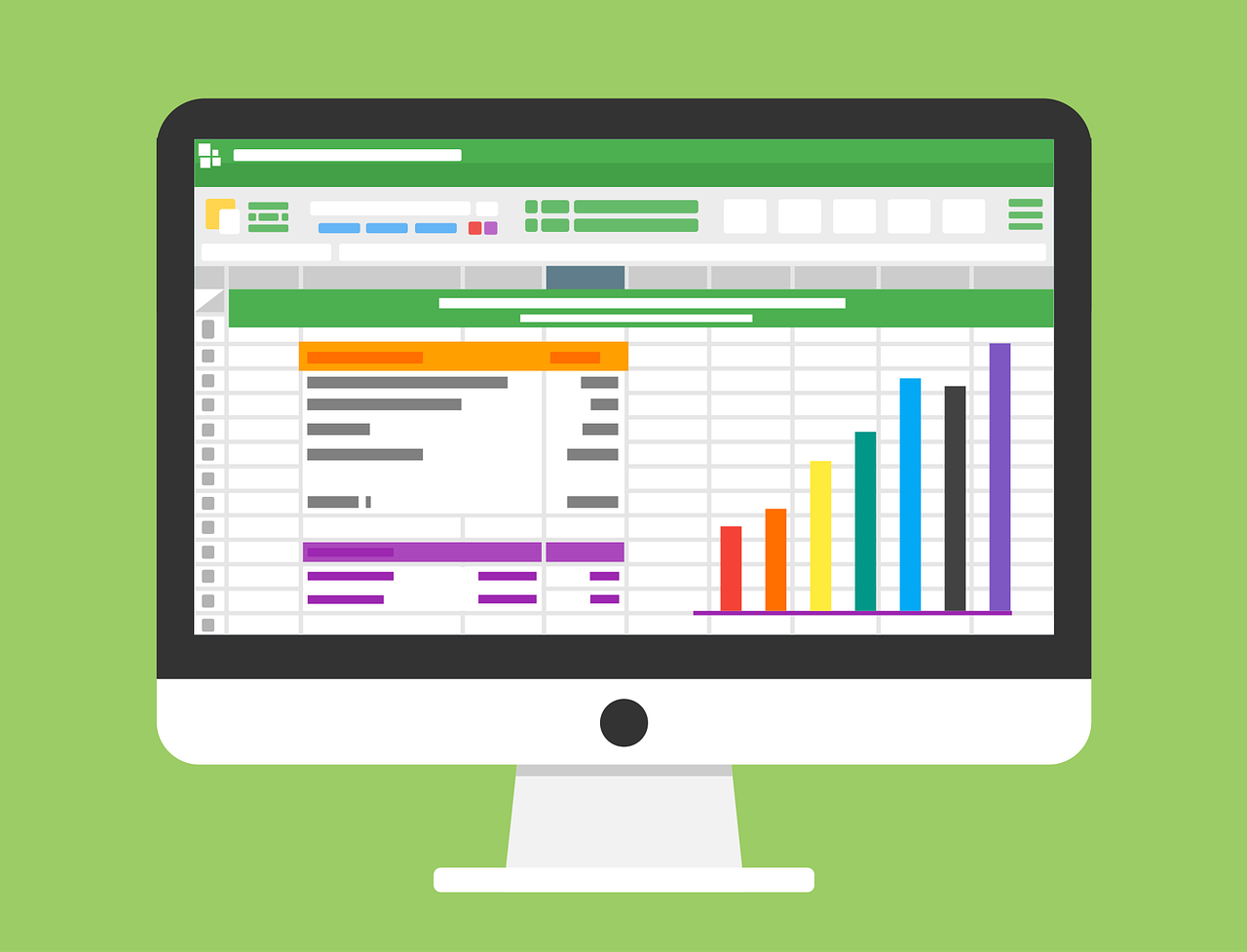
In a world filled with hyper-specialized apps and complex AI, one humble tool continues to stand as a titan of productivity and analysis: the spreadsheet. It’s the digital equivalent of a Swiss Army knife—unassuming at first glance, but packed with an astonishing array of functions for nearly any task imaginable. Whether you're a small business owner tracking inventory, a project manager mapping timelines, a student organizing research data, or a family planning a budget, the simple grid of rows and columns offers a universe of possibilities.
For many, the word "spreadsheet" conjures images of intimidating walls of numbers and cryptic formulas, primarily the domain of accountants and financial analysts. But that perception is a disservice to one of the most accessible and powerful tools ever created. The truth is, with a foundational understanding, anyone can leverage spreadsheets to bring order to chaos, uncover hidden insights, and make smarter, data-driven decisions.
This comprehensive guide is your roadmap. We'll start with the absolute basics, deconstruct the anatomy of a spreadsheet, dive deep into the magic of formulas, and explore advanced techniques for data analysis and visualization. By the end, you won't just use spreadsheets; you'll think in spreadsheets, empowering you to solve problems you never thought possible.
The Anatomy of a Spreadsheet: Deconstructing the Grid
Before you can build a skyscraper, you need to understand the bricks and mortar. A spreadsheet's interface might seem busy, but its core components are simple, logical, and designed for efficiency. Let's break them down.
Core Components
- Cell: This is the most fundamental building block. A cell is a single rectangle in the grid where you can input data. This data can be text (like a name), a number (like a price), a date, or a formula.
- Row and Column: The grid is organized into columns (labeled with letters: A, B, C...) and rows (labeled with numbers: 1, 2, 3...). The intersection of a column and a row defines a unique cell address. For example, the cell in the top-left corner is A1. This addressing system is the foundation for all spreadsheet formulas and functions.
- Worksheet (or Sheet/Tab): A single spreadsheet file, often called a workbook, can contain multiple pages or worksheets. You can see these as tabs at the bottom of the screen (e.g., "Sheet1," "Sheet2"). This is incredibly useful for organizing related data. For instance, in a business workbook, you might have one sheet for "Q1 Sales," another for "Q2 Sales," and a third for a "Summary Dashboard."
- The Formula Bar: Located just above the column headers, the formula bar is the brain of the operation. When you select a cell, this bar shows you the true content of that cell. If the cell contains a simple number like
150, the formula bar shows150. But if the cell displays150as the result of a formula like=100+50, the formula bar will show you the underlying formula. This is where you'll write and edit all your calculations. - The Ribbon/Toolbar: This is the command center at the top of the application window, containing all the tools for formatting, inserting charts, sorting data, and more. In modern applications like Microsoft Excel and Google Sheets, the ribbon is organized into logical tabs like "Home," "Insert," "Data," and "Formulas."
Understanding these five elements is the first major step. You now have the vocabulary to navigate the environment and begin inputting and organizing your data.
From Basic Arithmetic to Powerful Functions: The Magic of Formulas
This is where spreadsheets evolve from static tables into dynamic calculators. A formula is an expression that performs a calculation on values in your sheet. The true power lies in their ability to automatically update. If you have a formula that sums up a column of numbers, and you change one of those numbers, the sum recalculates instantly.
Every formula or function begins with an equals sign (=). This tells the spreadsheet, "Don't just display the following text; calculate it!"
The Building Blocks: Basic Operators
The simplest formulas use standard arithmetic operators. Imagine you have the price of an item in cell A2 ($50) and the quantity in B2 (3).
- Addition (
+):=A2 + 10would result in60. - Subtraction (
-):=A2 - 10would result in40. - *Multiplication (`
):**=A2 * B2would calculate the total cost, resulting in150`. - Division (
/):=A2 / 2would result in25.
Must-Know Functions for Everyone
While basic operators are useful, built-in functions are what make spreadsheets truly efficient. A function is a pre-programmed formula that takes inputs (called arguments) and returns a result.
Here are the absolute essentials:
-
SUM: Adds up a range of cells. Instead of writing=A2+A3+A4+A5, you can simply write:=SUM(A2:A5)The colon (
:) signifies a range, meaning "everything from A2 to A5." -
AVERAGE: Calculates the average (mean) of a range of numbers.=AVERAGE(A2:A5) -
COUNT: Counts the number of cells in a range that contain numbers. This is useful for quickly seeing how many entries you have.=COUNT(A2:A5) -
MAXandMIN: Find the highest and lowest values in a range, respectively. Perfect for identifying top sales or lowest scores.=MAX(A2:A5) =MIN(A2:A5)
Leveling Up: Intermediate Functions That Save Hours
Once you've mastered the basics, a new world of efficiency opens up with more advanced functions. These are the workhorses of data analysis.
Logical Functions: IF
The IF function allows your spreadsheet to make decisions. It checks if a condition is true, and then returns one value if it is, and another if it's false.
The syntax is: =IF(logical_test, value_if_true, value_if_false)
Example: Let's say you have student scores in column B. You want to display "Pass" if the score is 60 or higher, and "Fail" otherwise. In cell C2, you would write:
=IF(B2>=60, "Pass", "Fail")You can then drag this formula down the column, and it will automatically assess each student's score.
Lookup Functions: VLOOKUP and XLOOKUP
Lookup functions are game-changers. They allow you to find and retrieve data from a table based on a known value.
VLOOKUP (Vertical Lookup) has long been the standard. It searches for a value in the first column of a table and returns a corresponding value from a specified column in the same row.
The syntax is: =VLOOKUP(lookup_value, table_array, col_index_num, [range_lookup])
Generate by Gemini 2.5 Pro